Planning and calendar
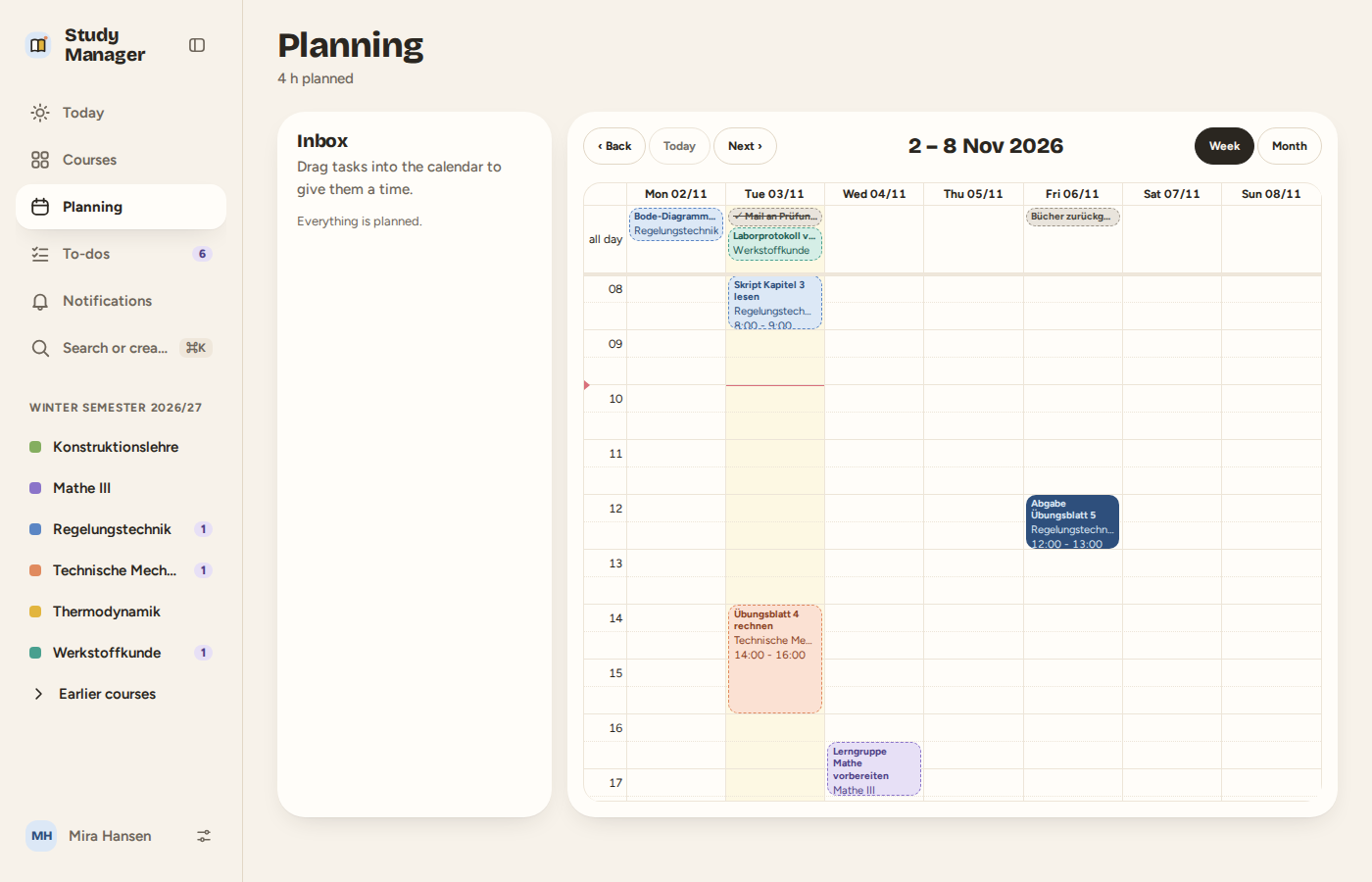
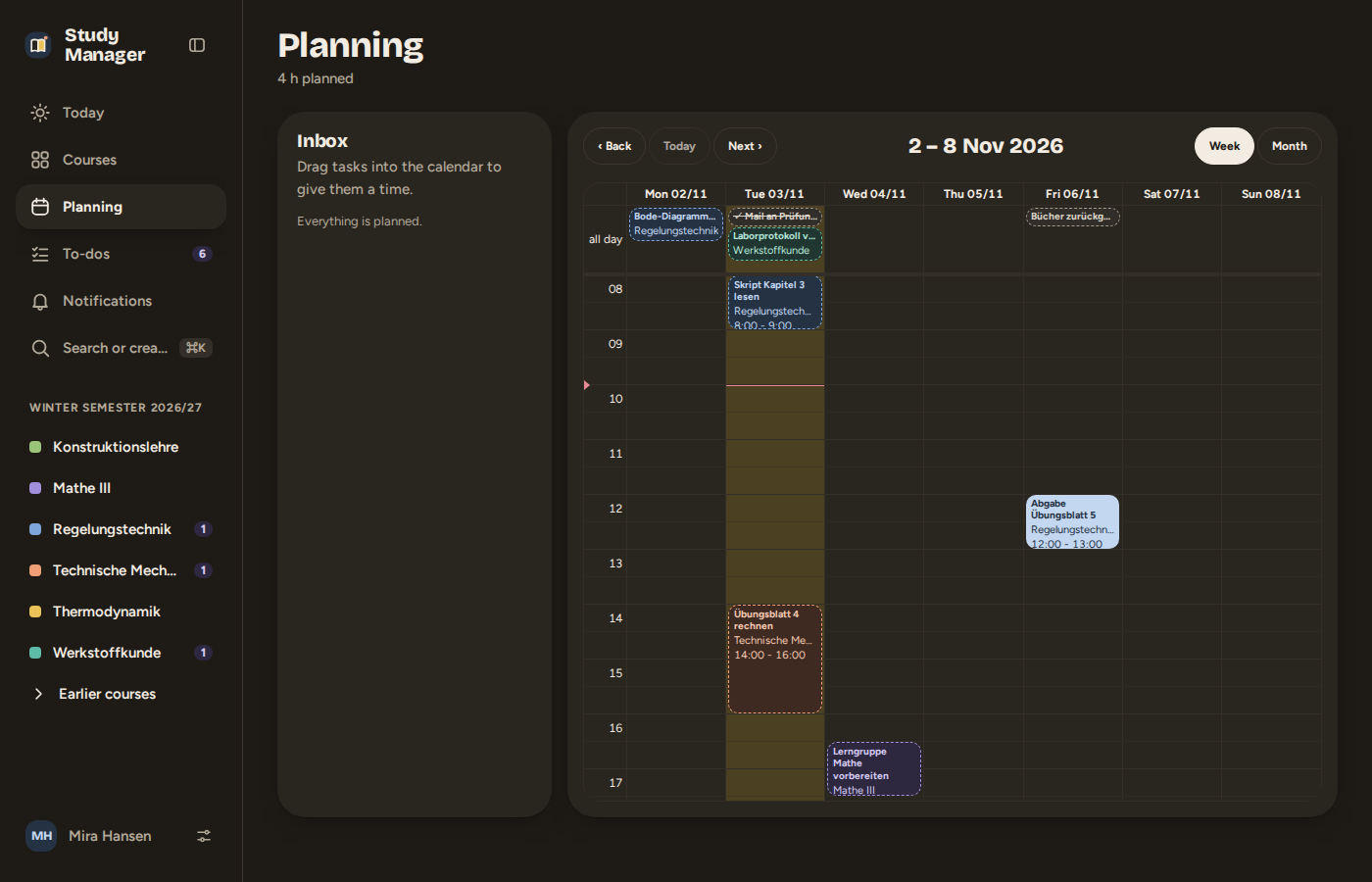
Under Planning you see your week: tasks (time blocks), deadlines and the sessions from your timetable.
Views
- Laptop: week (7 days) and month. Drag a task from the inbox on the left into the calendar to give it a time; select a free area for a new task.
- Phone: day, week and month. The day is the start view, the week can be swiped sideways. If you make the window larger, the calendar switches back to the 7-day week.
Subscribing to your timetable
Under Settings → Calendar you add the iCal link of your timetable. Study Manager reads it regularly and turns the recurring dates into series. If you assign a series to a course, it supplies the course's sessions (with a number, e.g. session 3 of 13) and shows cancelled dates.
The timetable import is tailored to iCal feeds in the style of CAMPUSonline (titles with abbreviations like VO, UE, VU, a description with "Entfall" for cancelled dates). Feeds from other systems are often read as well, but matching them to courses is less precise then. Help connect more systems: Connecting universities.
Subscribing to the calendar on your phone
Your private subscription link shows deadlines and planned tasks in your phone's calendar app – read only. You find it under Settings → Calendar; anyone who knows the link sees your dates, so treat it like a password and renew it when needed.